Sources checked October 25, 2026.
The short answer
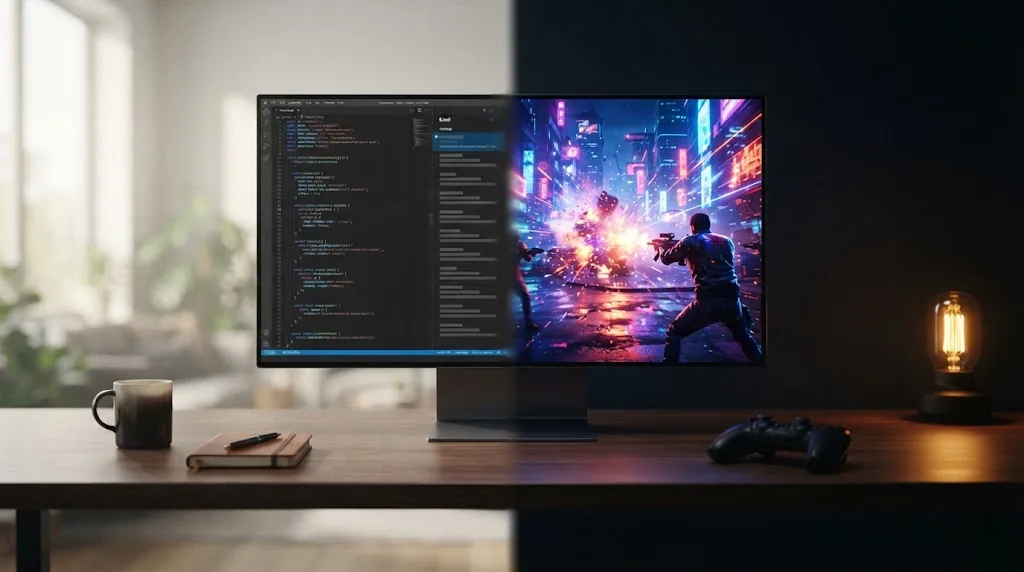
Using one OLED for both gaming and work is finally realistic in 2026/27, as long as you pick the right panel and set up your desk for it. The two classic objections are really two separate problems with separate fixes. Text fringing is a hardware problem, and higher pixel density plus the new RGB-stripe OLED panels reduce it or get rid of it. Burn-in is a habits problem. Auto-hiding the taskbar, using dark mode, keeping brightness moderate and buying a model with a three-year burn-in warranty keep that risk under control.
If static work fills more than about half your screen time and you'd rather not change how your desktop looks, a good IPS monitor is still the calmer choice. For a full comparison of current models, see our research-backed best gaming monitors guide.
What a "hybrid" OLED setup really means
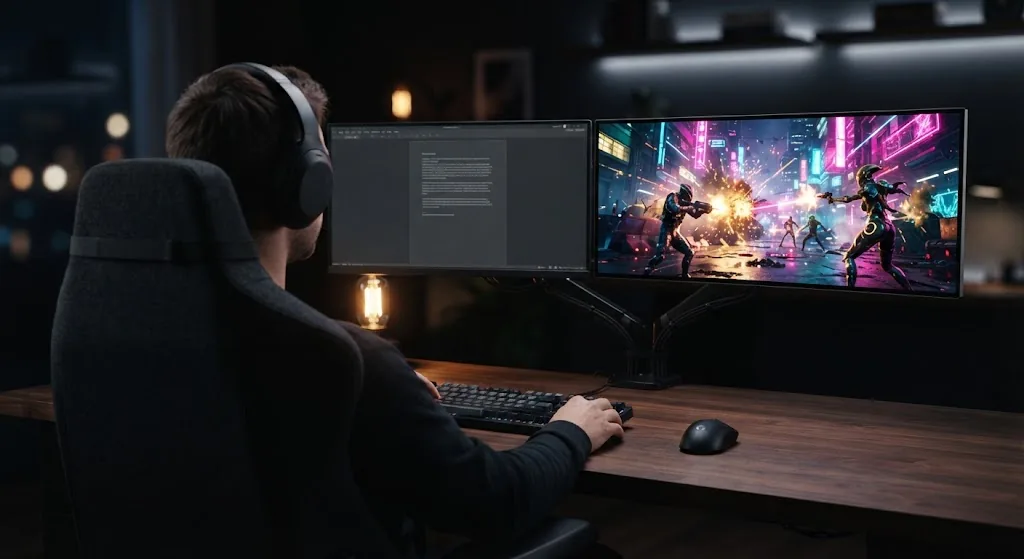
In a hybrid setup, one monitor does two very different jobs. It spends hours on mostly static desktop work, then switches to fast, colorful games. OLED is brilliant at the second job. The first one is where it has always struggled, for two separate reasons:
- Text clarity. Traditional OLED subpixel layouts don't match the red-green-blue stripe Windows expects, so small text can show colored fringes, especially at 1440p.
- Burn-in. Taskbars, toolbars and side panels sit in the same place for hours, and over time those pixels wear unevenly.
Lumping both into one vague "OLED isn't for work" verdict leads to bad buying decisions. You solve the first one by buying the right screen. You manage the second one by how you use it.
What changes in a real work-and-play day
| Part of the day | What you see on OLED | What to set up |
|---|---|---|
| Morning email and documents | On budget models, white pages can look less bright than on IPS; text fringing on older 1440p layouts | Dark mode where possible; moderate SDR brightness |
| Afternoon coding or spreadsheets | Static panels and toolbars for hours, the highest burn-in risk of the day | Auto-hide taskbar, dark editor theme, avoid fixed bright side panels |
| Breaks and meetings | A paused screen showing a static window | Short screen-off or sleep timer; black screen saver |
| Evening gaming | Deep blacks, instant pixel response, strong HDR highlights | Raise brightness for HDR; let the panel's care cycle run when you switch off |
So OLED pays you back in the evening and asks for a few good habits during the day. If you'd rather never think about any of this, that's a perfectly good reason to choose IPS.
Three hybrid users
- The developer who games at night. Eight hours in a code editor, two hours of gaming. Static work dominates. This person should either commit to a dark, auto-hiding desktop on a 4K or RGB-stripe OLED with a three-year burn-in warranty, or buy a fast IPS and not look back.
- The creative who games. Photo or video work plus games. OLED's contrast and color help with both, and the content moves around enough to spread the wear. A strong candidate for OLED.
- The light office user who mostly games. A couple of hours of browsing and email, then mostly games. This is the easy case. Almost any modern OLED with its care features on will do the job.
Evidence: what changed for OLED at the desk
RGB-stripe OLED panels arrive in monitors
The biggest change is the panel layout. In September 2026, PCWorld reported on Dell's Alienware 32 4K OLED (AW3226Q), a 32-inch 4K 165Hz monitor built on LG's "RGB Stripe Tandem" OLED panel with a polarizer layer, priced at $699 with a three-year burn-in warranty. T3's October 15, 2026 review lists it on sale from Dell in the US at $699.99. Dell says text renders without fringing. PCWorld's Brad Chacos saw the panel in person and wrote that "text renders cleanly with no fringing," calling it a serious option for daily work as well as gaming. The panel makers are heading the same way. LG Display has announced a 27-inch 4K 240Hz RGB-stripe OLED panel, and Samsung Display a 34-inch V-stripe QD-OLED panel, both aimed at text clarity.
Pixel density still matters
Even on traditional layouts, fringing is easier to see when the pixels are bigger. A 27-inch 1440p screen has roughly 109 pixels per inch. A 32-inch 4K screen has about 138, and a 27-inch 4K screen about 163. That's why 4K OLEDs have long been the safer choice for a hybrid desk. Our QD-OLED vs WOLED guide explains how each panel's subpixel layout affects text.
Burn-in: the risk that remains
Sharper text doesn't change how an OLED wears. Independent long-term testing shows that any OLED will burn in with enough bright, static content, while varied use with the care features on is far gentler. A work desk is the static-content scenario almost by definition, so habits and warranty matter more here than they do for someone who only games. Our guide to OLED burn-in risk on gaming monitors covers the evidence and compares burn-in warranties by brand.
The two-monitor alternative
A lot of hybrid users get around the problem by splitting the jobs. An affordable IPS monitor handles email, documents and code all day, and the OLED is kept for games, video and creative work. That takes most of the static content off the OLED, brings its burn-in risk close to a pure gaming setup, and lets you buy a cheaper 1440p OLED without worrying about text. The downsides are desk space, a second purchase and a messier setup, and it doesn't suit a laptop docked to a single screen. If you have the room, though, it's the lowest-risk way to enjoy OLED gaming without changing how you work.
Trade-offs of a hybrid OLED
- Price. A text-friendly 32-inch 4K OLED such as the AW3226Q sells for about $700 ($699.99 at Dell in October 2026), roughly twice the price of a 1440p entry OLED at around $350. Our fast IPS vs OLED guide breaks down what each step up gets you.
- Refresh rate vs resolution. Text-friendly 4K panels often run at 165Hz to 240Hz, and the very highest refresh rates are usually found at 1440p or lower. On a hybrid desk, sharp text usually matters more than the last few hertz.
- Brightness on white pages. OLEDs limit full-screen brightness to protect the panel, so a white document can look dimmer than on a good IPS in a bright office.
- Desktop habits. On a work OLED, dark mode and an auto-hiding taskbar aren't optional extras. If you dislike them, the OLED will feel like a compromise.
- New technology. RGB-stripe OLED monitors are new, so there's still little independent long-term data on them.
How to choose and set up an OLED for gaming and work
- Estimate your static share honestly. If static work takes up more than about half your screen time and you won't change your desktop habits, choose IPS.
- Put text clarity first. Go for an RGB-stripe or V-stripe panel, or at least 4K resolution. Confirm the panel type in an independent review, not just on the box.
- Insist on a three-year burn-in warranty. Read the written terms for the exact model, because some warranties require the care features to stay on.
- Set up the desktop on day one. Go through the checklist below before you start working on the new screen.
- Keep a simple routine. Let the screen sleep during breaks, let refresh cycles finish, and vary what's on screen.

Hybrid OLED setup checklist
| Setting | Where | Why |
|---|---|---|
| Auto-hide the taskbar | Windows taskbar settings | Removes the most common static element |
| Dark mode | Windows and your main apps | Less bright static area, less wear |
| Moderate SDR brightness | Monitor menu | Brightness speeds up wear; keep peak brightness for HDR games |
| Display scaling | Windows display settings | On a 32-inch 4K panel, around 150% keeps text readable |
| Screen off after a few minutes idle | Windows power settings | Avoids a static window during breaks |
| Care features on | Monitor menu (pixel shift, panel refresh, logo dimming) | Reduces risk; may be required by the warranty |
| Black or rotating wallpaper, hidden desktop icons | Windows personalization | Fewer fixed bright shapes |
Common mistakes on a work OLED
- Leaving a bright, fixed sidebar open all day. Chat apps, file explorers and IDE panels are the usual suspects.
- Turning off the care features because a refresh cycle interrupted you. That can also affect your warranty coverage.
- Running maximum brightness for office work when you only need it for HDR content.
- Buying a 1440p OLED with a traditional layout for text-heavy work and then blaming OLED for blurry text.
FAQ
Is OLED good for programming?
It can be, with a text-friendly panel (RGB-stripe or 4K) and a dark editor theme. Coding is still the riskiest everyday use for burn-in, though, so a three-year burn-in warranty and good desktop habits are a must.
Is OLED bad for Excel and office work?
Not bad, but demanding. Spreadsheets are bright and static, which is the worst case for wear and the case where text fringing shows most. Use dark mode where you can, moderate brightness and a text-friendly panel, or choose IPS if office work takes up most of your day.
Which OLED is best for text in 2026/27?
Panels with an RGB-stripe or V-stripe layout are designed specifically for clean text, and 4K OLEDs reduce fringing on the older layouts. Check independent reviews of the exact model before you buy.
Can I use an OLED as my only monitor for work and gaming?
Yes, if you're fine with a few desktop habits and you buy a model with a burn-in warranty. If you want a work screen you can set up once and forget, keep the OLED for gaming and pair it with an IPS for work, or go with IPS alone.
Does dark mode really help an OLED?
Yes. Dark pixels give off little or no light, so a dark interface cuts both brightness and uneven wear on the parts of the screen that stay up all day.
Sources and Methodology
RigGrade is a research-backed publisher, not a testing lab, and we didn't test these monitors ourselves. This guide relies on independent reporting, panel-maker announcements and the evidence summarized in our related OLED guides, and we say so wherever the evidence is thin. All sources were accessed on October 25, 2026.
- PCWorld, Alienware 32 4K OLED (AW3226Q) with RGB Stripe Tandem OLED, September 2, 2026: pcworld.com
- T3, Dell Alienware AW3226Q review and US price, October 15, 2026: t3.com
- Tom's Guide, LG Display 27-inch 4K 240Hz RGB stripe OLED panel, December 2025: tomsguide.com
- TFTCentral, Samsung Display 34-inch V-stripe QD-OLED panel, January 2026: tftcentral.co.uk
- Engadget, Alienware AW2726DM review (1440p QD-OLED, $350), April 2026: engadget.com