Gaming Monitor Response Time: What 1ms Really Means
A 1ms gaming monitor claim does not guarantee 1ms motion in every scene. The result depends on whether the number is GtG or MPRT, the overdrive setting, refresh rate, transition measured and amount of overshoot. Two monitors can advertise 1ms and still produce noticeably different motion clarity.
That does not automatically make every 1ms specification false. It means the number is incomplete without its measurement method, overdrive setting, refresh rate, and overshoot result.
This guide explains gaming monitor response time without treating the specification sheet as a verdict. You will learn what GtG and MPRT measure, how response time differs from refresh rate and input lag, and what to check before choosing a monitor.
What Is Gaming Monitor Response Time?
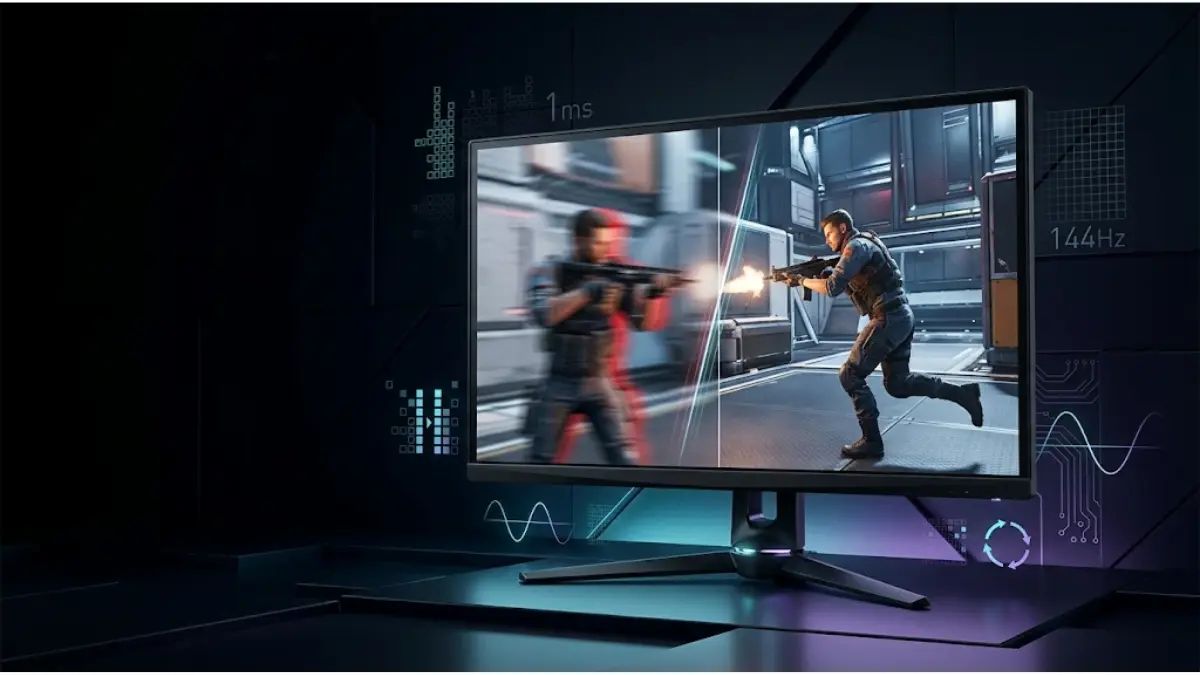
Gaming monitor response time is the time a pixel needs to change from one brightness or color level to another. It is measured in milliseconds. Faster transitions help a display replace the previous image cleanly when objects or the camera move. Slower transitions can leave parts of the previous frame visible, producing ghosting, smearing, or dark trails. Response time is not the delay between pressing a button and seeing the result; that is related to input lag and total system latency. It is also not refresh rate, which describes how many new images the monitor can display each second. The three measurements interact, but they answer different questions: refresh rate affects how often frames appear, response time affects how cleanly pixels draw them, and input lag affects how soon the display begins showing a received frame.
A pixel does not always switch at the same speed. A dark-to-dark transition may behave differently from a mid-gray transition, particularly on an LCD panel. This is why a single best-case number cannot describe every scene in a game.
When pixel transitions are too slow, you may notice:
- a faint duplicate behind moving objects;
- dark smearing in shadow-heavy scenes;
- reduced detail while tracking an opponent;
- colored or bright halos caused by excessive overdrive.
The last artifact is important. A monitor can become faster on paper while looking worse in motion.
GtG vs MPRT: Why One Monitor Can Have Two Response Times
Manufacturers commonly use GtG or MPRT on their product pages. These are not interchangeable measurements.
| Measurement | What it describes | What a low number suggests | What it may hide |
|---|---|---|---|
| GtG | Time for pixels to transition between gray levels | Faster physical pixel transitions | Slow transitions elsewhere, overshoot, selected test thresholds |
| MPRT | How long a moving image remains visibly persistent | Lower perceived motion blur | Strobing tradeoffs and the panel’s native transition speed |
GtG Measures Pixel Transition Speed
GtG means gray-to-gray. It measures the time required for a pixel to move between selected luminance levels. The problem is not the concept—it is the way one result can be presented as if it represented the whole panel.
A monitor performs many different transitions while displaying a game. An advertised 1ms value may represent one particularly fast transition rather than the average. Testing thresholds can also exclude the slow beginning or tail end of a transition. TechRadar’s explanation of pixel response describes how quoted GtG measurements may not capture the complete color change.
Independent reviews are therefore more useful when they report:
- an average across multiple transitions;
- the slowest transitions;
- overshoot or inverse-ghosting error;
- results at several refresh rates;
- the overdrive mode used for each result.
MPRT Measures Motion Persistence
MPRT means Moving Picture Response Time. It relates more closely to how long an image remains visible during motion, including the sample-and-hold behavior of modern displays.
GtG and MPRT measure different parts of monitor motion performance. GtG measures how quickly pixels physically transition between selected gray levels. MPRT describes the persistence of a moving image and the blur perceived while the eyes track motion. A monitor can therefore be rated 4ms GtG and 1ms MPRT without the specifications directly contradicting each other. Some LCD monitors reach a low advertised MPRT by flashing or strobing the backlight, briefly hiding parts of the pixel transition. This can improve motion clarity, but it may reduce brightness, introduce visible flicker or strobe crosstalk, and prevent simultaneous use of certain variable-refresh features. GtG is useful for evaluating native pixel speed; MPRT is useful for understanding motion persistence. Neither number should be used alone to rank two monitors. For a useful comparison, also examine overshoot, refresh rate, and the test mode used.
Blur Busters’ technical GtG and MPRT FAQ explains why even nearly instantaneous pixel transitions do not eliminate all sample-and-hold motion blur.
Response Time vs Refresh Rate vs Input Lag
These specifications are frequently mixed together because all three involve time. Their practical effects are different.
- Response time: how quickly pixels change state.
- Refresh rate: how many times per second the display can present a new frame.
- Input lag: how long the display waits before it begins showing a received image.
- End-to-end latency: the complete delay from your physical input through the game, CPU, GPU, display, and pixel response.
RTINGS’ input-lag methodology explicitly separates the moment an image begins appearing from the time required for the pixel transition to finish.
Can the Pixels Finish Before the Next Frame?
A higher refresh rate leaves less time between frames:
| Refresh rate | Time per frame |
|---|---|
| 60Hz | 16.67ms |
| 120Hz | 8.33ms |
| 144Hz | 6.94ms |
| 165Hz | 6.06ms |
| 240Hz | 4.17ms |
| 360Hz | 2.78ms |
The calculation is simple: divide 1,000 milliseconds by the refresh rate. At 240Hz, a new refresh begins every 4.17ms. If many pixel transitions take longer than that, parts of one frame can remain visible when the next frame arrives.
Finishing within the refresh window is a useful target, but it is not the only requirement. An aggressive overdrive mode might force a transition to finish quickly while overshooting the intended color. The measured transition becomes faster, yet a bright inverse-ghosting trail appears.
This also explains why a 240Hz badge cannot rescue a poorly tuned panel. High refresh rate increases temporal smoothness and can reduce latency, but the pixels still need to keep pace.
Why Advertised “1ms” Response Time Can Be Misleading
A 1ms monitor response-time claim is not automatically false, but it is not a complete performance rating. It may describe the fastest of many pixel transitions, use a limited measurement threshold, or require the monitor’s most aggressive overdrive mode. That mode can create overshoot, seen as bright or colored halos around moving objects. A 1ms MPRT claim may instead rely on backlight strobing, which reduces perceived persistence without making every native pixel transition complete in one millisecond. To judge the claim, identify whether it is GtG or MPRT, check the overdrive mode, examine average transition and overshoot measurements, and review performance at the refresh rates you will actually use. A well-tuned monitor with a slower advertised figure can look cleaner than a poorly tuned model carrying a 1ms badge. The advertised value should therefore be treated as a claim to verify, not a final ranking.
The wording used on a product page deserves attention. Look for phrases such as:
- “up to” or “minimum” response time;
- “1ms MPRT” without a separate GtG figure;
- “1ms GtG at fastest setting”;
- a footnote requiring a special gaming or blur-reduction mode;
- a figure supplied without any test method.
The correct conclusion is not that specifications are useless. They help identify what a manufacturer claims. They simply cannot replace measurements covering real transitions and playable settings.
Overdrive, Overshoot, and Inverse Ghosting
LCD pixels rely on liquid crystals changing orientation. Overdrive applies extra voltage to accelerate that movement. Used well, it reduces conventional ghosting. Used too aggressively, the pixel moves beyond its intended target and must correct itself.
That error is called overshoot. On screen, it appears as inverse ghosting: bright, dark, or colored halos around moving edges.
Monitor menus label overdrive differently. Common names include Normal, Fast, Faster, Extreme, AMA, Trace Free, or simply Response Time. The highest option is not automatically the best. A middle setting often provides a cleaner balance, but the correct choice depends on the monitor and refresh rate.
Variable refresh rate makes this more complicated. An overdrive mode that works well at 240Hz can overshoot badly when a game falls to 80Hz. Strong reviews therefore test more than the maximum refresh rate.
What Is a Good Response Time for Gaming?
There is no universal answer based solely on the box rating. The right target depends on your games, refresh rate, sensitivity to artifacts, and the quality of the monitor’s tuning.
| Gaming use | What matters most |
|---|---|
| Competitive FPS and esports | Fast average transitions, little overshoot, low input lag, consistency at high refresh rates |
| Mixed multiplayer and single-player | Balanced motion across the variable-refresh range |
| RPG, strategy, and cinematic games | Clean motion plus contrast and image quality; the lowest claimed number is less important |
| Console gaming | Results at 60Hz and 120Hz, not only at the monitor’s maximum PC refresh rate |
A genuine difference between very fast and slow pixel behavior can be visible in competitive games. But comparing “1ms” with “5ms” on two specification sheets does not prove that the first monitor will look better. The measurement types and test conditions may be different.
Panel technology also influences behavior. OLED pixels typically transition extremely quickly, while LCD results depend more heavily on panel characteristics and overdrive tuning. IPS, VA, TN, and OLED involve other tradeoffs—contrast, viewing angles, brightness, text clarity, and price—that deserve a separate comparison.
When you are ready to compare complete products rather than isolated specifications, see RigGrade’s guide to the best gaming monitors for 2026/27.
How to Evaluate Monitor Response Time Before Buying
Use this seven-step checklist instead of selecting the lowest number on a retailer page.
1. Identify the Measurement
Check whether the claimed value is GtG, MPRT, or another method. If the page only says “1ms response time,” look for a footnote or downloadable manual.
2. Find Average Transition Results
One fast transition is not enough. Look for an average covering multiple dark and bright transitions. Transition charts or heatmaps are more informative than a single headline figure.
3. Check Overshoot
Fast response with severe overshoot is a poor trade. Review motion photographs and quantitative error results where available.
4. Verify the Overdrive Mode
Confirm which setting produced the best balanced result. If 1ms requires an unusable Extreme mode, the claim has little practical value.
5. Check More Than Maximum Refresh Rate
For a variable-refresh monitor, examine behavior at maximum refresh, around the middle of the range, and at 60Hz. This is especially important for console players and graphically demanding games.
6. Keep Input Lag Separate
A fast pixel response does not guarantee low display processing delay. Check input-lag measurements independently.
7. Match the Result to Your Games
Competitive players benefit most from consistently fast, clean motion. A player focused on slower single-player games may reasonably prioritize contrast, HDR performance, resolution, or price.
Our gaming monitor recommendations are the next step once you understand how to read these measurements.
Common Response-Time Mistakes
Avoid these shortcuts:
- assuming response time and input lag are the same;
- treating every 1ms claim as an identical measurement;
- enabling the strongest overdrive option without checking artifacts;
- reading only maximum-refresh-rate results;
- assuming MPRT describes native pixel transition speed;
- choosing 240Hz or 360Hz without considering the frame rates your system can sustain;
- judging motion performance from panel type alone;
- treating a browser motion test as laboratory-grade measurement.
Browser tests can still help you compare settings visually on your own monitor. They simply cannot produce universally comparable response-time numbers without appropriate capture and measurement equipment.
Frequently Asked Questions
Is 1ms Better Than 5ms for Gaming?
If both values were measured with the same method, across comparable transitions and with similar overshoot, the faster result would generally provide cleaner motion. Product-page figures rarely give that complete context. A well-tuned monitor advertised at 5ms can therefore look better than a 1ms model using aggressive overdrive or MPRT strobing.
Is Response Time the Same as Input Lag?
No. Response time measures pixel transitions and mainly affects motion clarity. Input lag measures the delay before the display begins showing an incoming image and affects responsiveness. Total system latency also includes the controller, game engine, CPU, GPU, frame queue, and other stages.
Which Is Better, GtG or MPRT?
Neither is universally better because they measure different behavior. GtG helps describe physical pixel-transition speed. MPRT helps describe motion persistence and perceived blur. For purchasing decisions, use both as context and prioritize independent tests that also report overshoot and refresh-rate behavior.
Is Response Time More Important Than Refresh Rate?
Both matter. Refresh rate determines how frequently frames can be displayed, while response time influences whether the pixels can draw those frames cleanly. A high-refresh monitor with slow transitions can smear; a fast panel at a low refresh rate cannot show as many unique frames.
Can a 1ms Monitor Still Have Ghosting?
Yes. The 1ms figure may represent only the fastest transition, while darker or brighter transitions remain slower. Ghosting can also result from the relationship between pixel speed, persistence, refresh rate, and overdrive tuning. Excessive overdrive can replace normal ghosting with inverse ghosting.
Should Overdrive Be Enabled for Gaming?
Usually, but not necessarily at the highest setting. Start with the manufacturer’s normal or medium gaming setting, then check moving objects for dark trails and bright halos. Increase overdrive if conventional ghosting remains; reduce it if inverse ghosting appears.
Does Response Time Change at Lower Refresh Rates?
It can. Pixel behavior and overdrive tuning may vary with refresh rate. A setting optimized for maximum refresh can produce more overshoot at lower frame rates. This is why multi-refresh testing is particularly valuable for variable-refresh gaming.
The Bottom Line
“1ms” should be treated as the beginning of an investigation, not the end of one. Determine whether it means GtG or MPRT, check average transitions and overshoot, verify the overdrive mode, and examine results at the refresh rates you actually use.
The best gaming monitor is not the one with the smallest number printed on its box. It is the one that combines clean motion, low latency, suitable image quality, and consistent performance for your games. Continue with RigGrade’s Best Gaming Monitors 2026/27 guide to apply those criteria to complete monitor choices.
Editorial methodology and sources
This explainer distinguishes manufacturer specifications from independently measured behavior. RigGrade did not perform laboratory response-time measurements specifically for this article. Technical explanations were checked against published monitor-testing methodologies and specialist display references, including:
- RTINGS: Monitor input-lag testing
- RTINGS: What to look for in a gaming monitor
- Blur Busters: GtG versus MPRT FAQ
- TechRadar: Response time and input lag explained
- TCL: What 1ms GtG means
Last reviewed: August 16, 2026.